

Assigning Users/Groups
- 27 May 2020
- 2 Minutes to read
- Print
- DarkLight
- Download PDF
Assigning Users/Groups
- Updated on 27 May 2020
- 2 Minutes to read
- Print
- DarkLight
- Download PDF
Article summary
Did you find this summary helpful?
Thank you for your feedback!
Atomic Scope v6 allows you to assign a transaction to a user or a group for reprocessing.
How to assign users/groups for Reprocessing
- From the Atomic Scope portal, navigate to the Tracking page
- Select a transaction which you want to assign to a user or a group
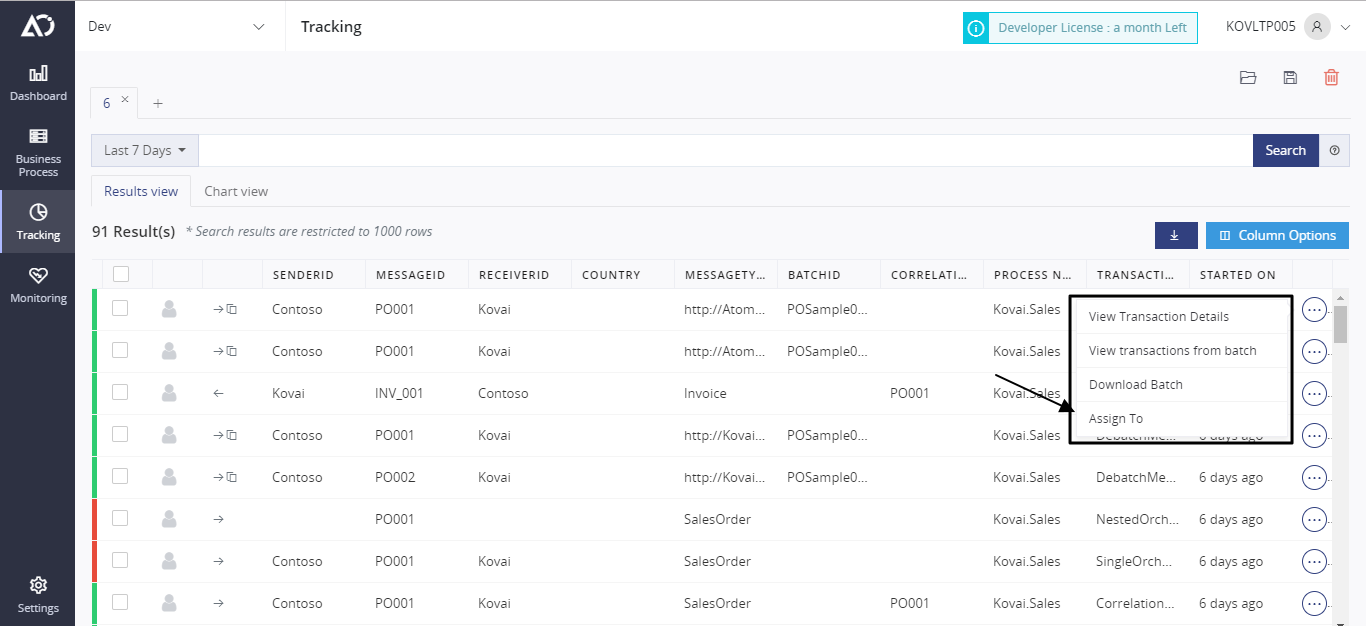
- Now select the user/group which you want to assign
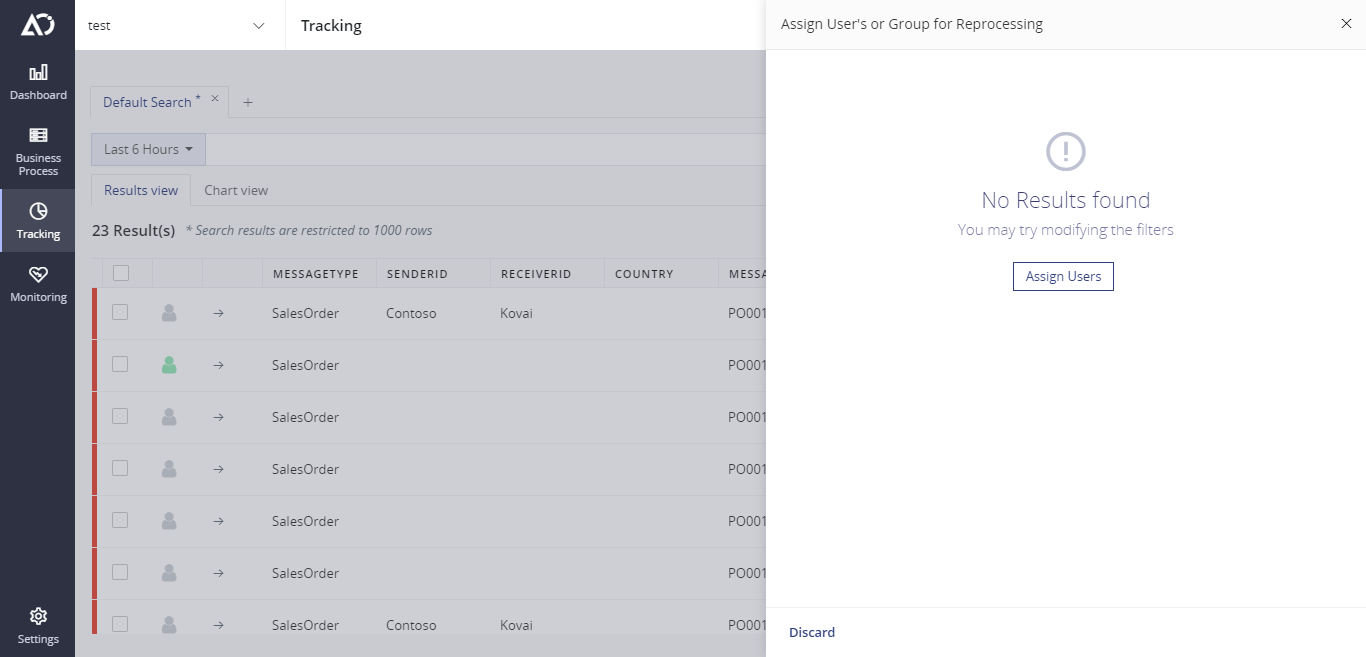
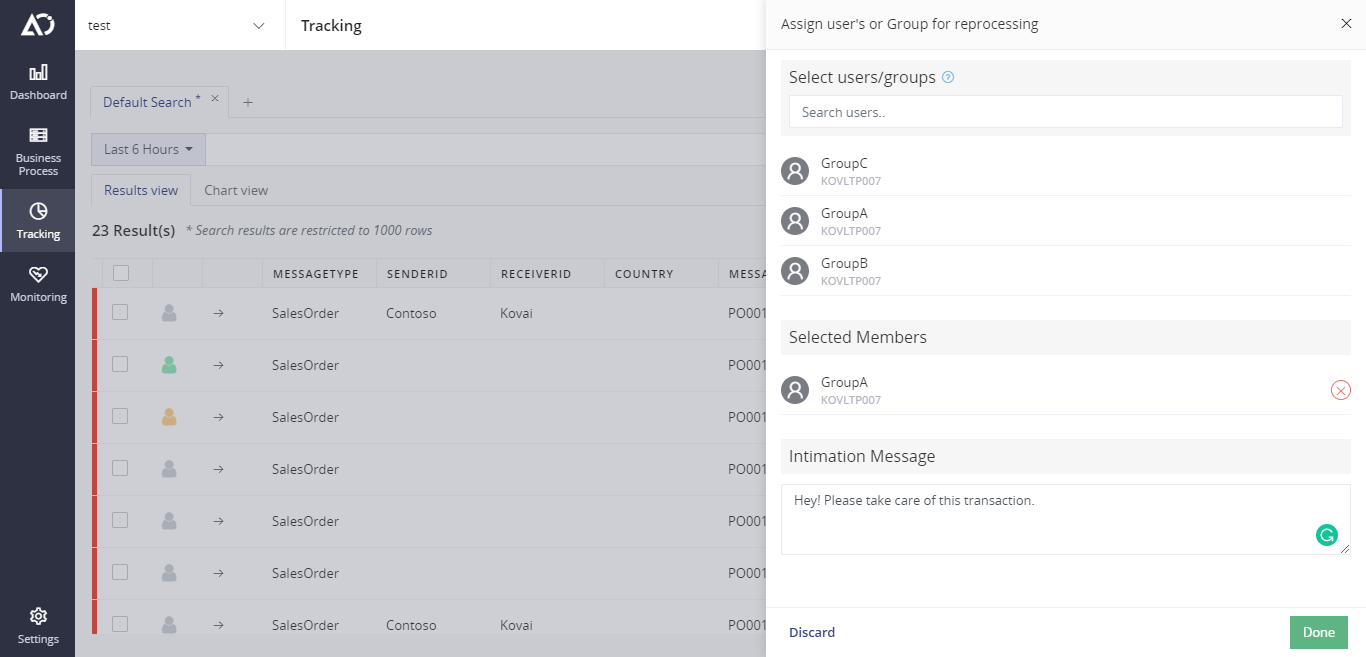
- While assigning a user/group, you can also leave them a note to indicate why this transaction has been assigned to them and/or provide any other instructions
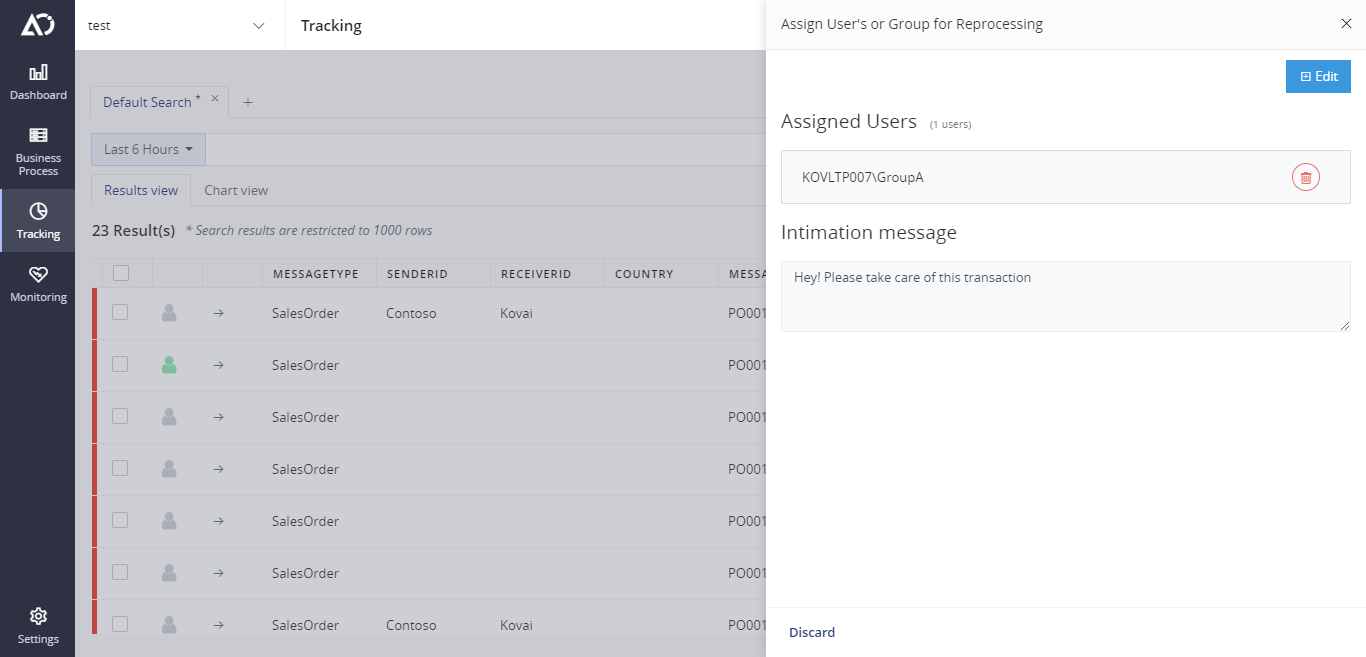
- Once you have completed the assignment, it will be shown like this, including the message that you provided.
FAQ
Who can assign a transaction
To be able to assign a transaction for reprocessing to users or groups, you need to have have one of the following Atomic Scope permissions:
- Administrators
- Business Process owners
Who can be assigned
In order to assign a user or a group for reprocessing a transaction the user should be a part of Atomic Scope User management. Only the users and groups which are shown in the User Management page can be assigned.
I cannot see User X
Q : I am trying to assign to a User, but the name is not showing up on the users list.
A : This is because you have not given user X the priviledge of Business Process Owner.
How many note messages can I add
It is not possible to add different note messages for different users. If you are assigning two users or groups for a particular transaction, all of them will receive the same intimation message. So, ideally:
1 Transaction = > Multiple users/ Groups => 1 Intimation Message
How can I find out what has been assigned to me
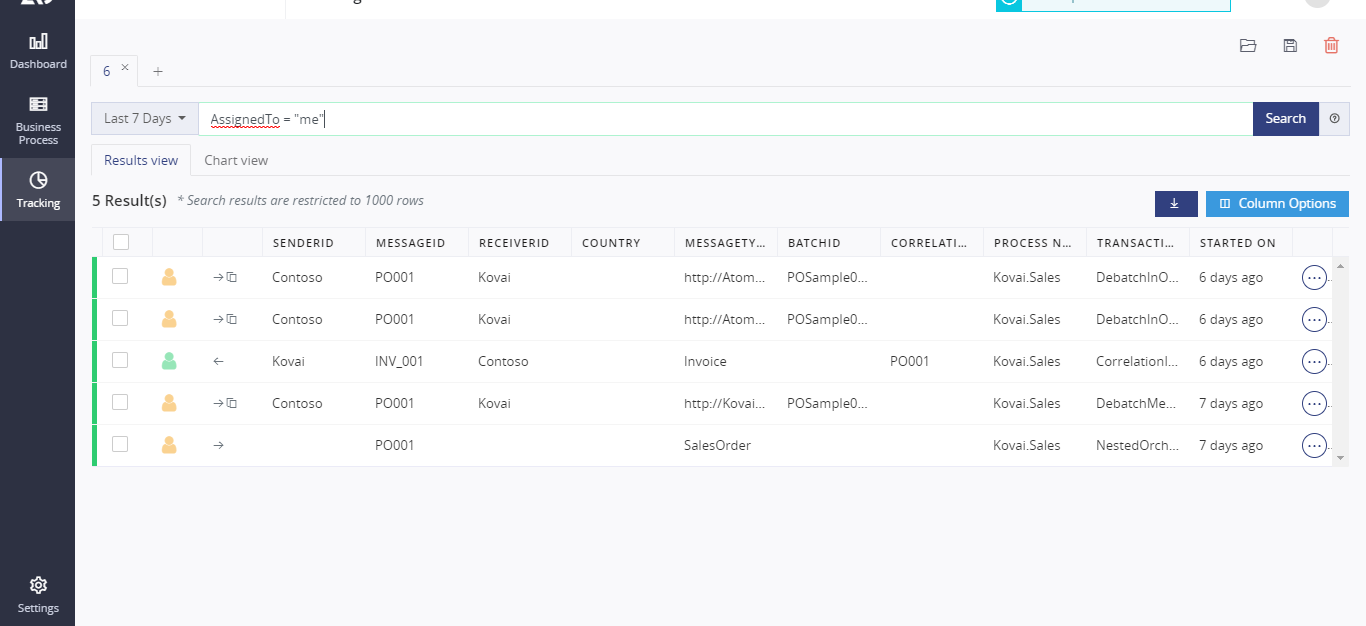
Navigate to the tracking page and you can search for AssignedTo = "me"
What do the color coded icons mean
Notice the second column with a user icon ? It is used to indicate whether a transaction has been already reprocessed or it is yet to be done.
Yellow - Waiting to be picked up
Green - Done , reprocessing has been complete
Gray - Not assigned to anyone
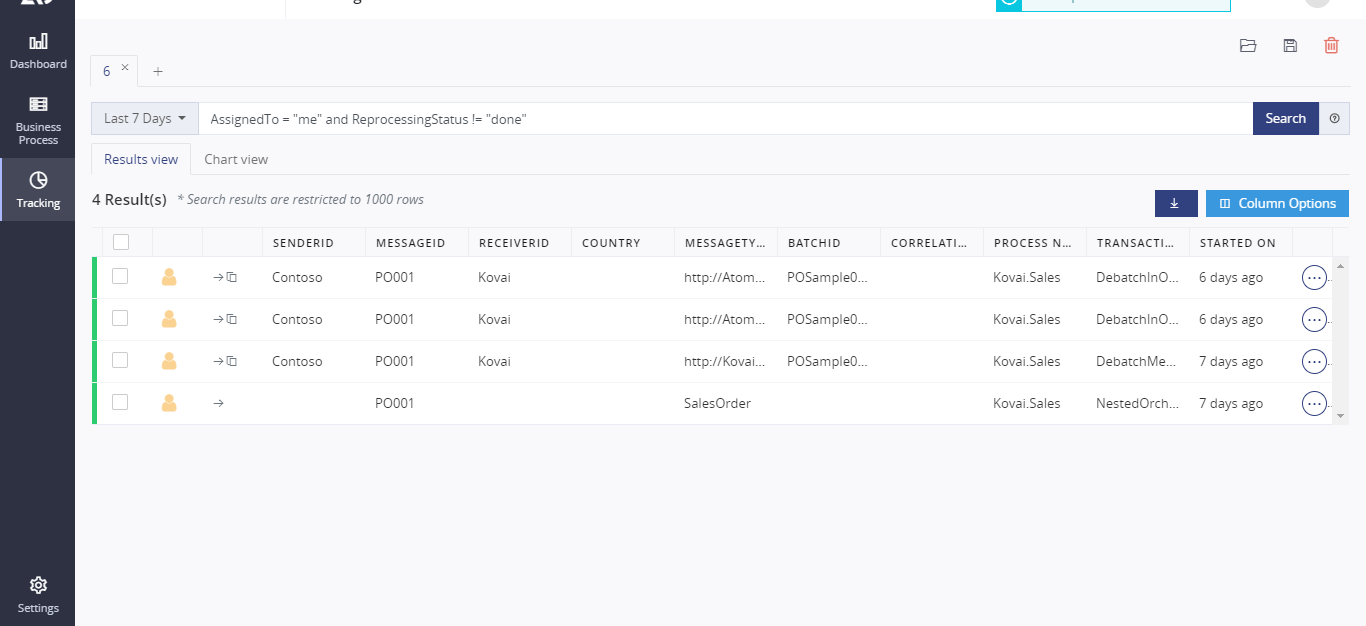
How can I filter for incomplete transactions only
- Just search for
AssignedTo = "me"andReprocessingStatus!="done"
- You can also search for
ReprocessingStatus="waiting"which will yield the same results as above.
AssignedTo Search query
Searching like AssignedTo = "Suhas" does not fetch any results.
This is because you also need to use the domain name and use \\ double slash after the domain name, like this AssignedTo = "KOVLTP006\\Suhas"
Was this article helpful?